
Most teams love Fathom for capturing call notes—but the follow-up still lives somewhere else. Reps copy summaries into Salesforce, ops chases action items in Slack, and context gets lost before the next client touchpoint.
Canonical guide: For the full Fathom to Salesforce workflow, start with our CRM meeting logging guide. This article expands on setup details.
SmarterMeetings closes that gap by syncing Fathom meetings into one workspace, then pushing summaries and tasks to Salesforce on Personal Pro and Team plans.
Key takeaway: Fathom is your recorder. SmarterMeetings is your follow-up system—client tags, tasks, review status, and CRM sync.
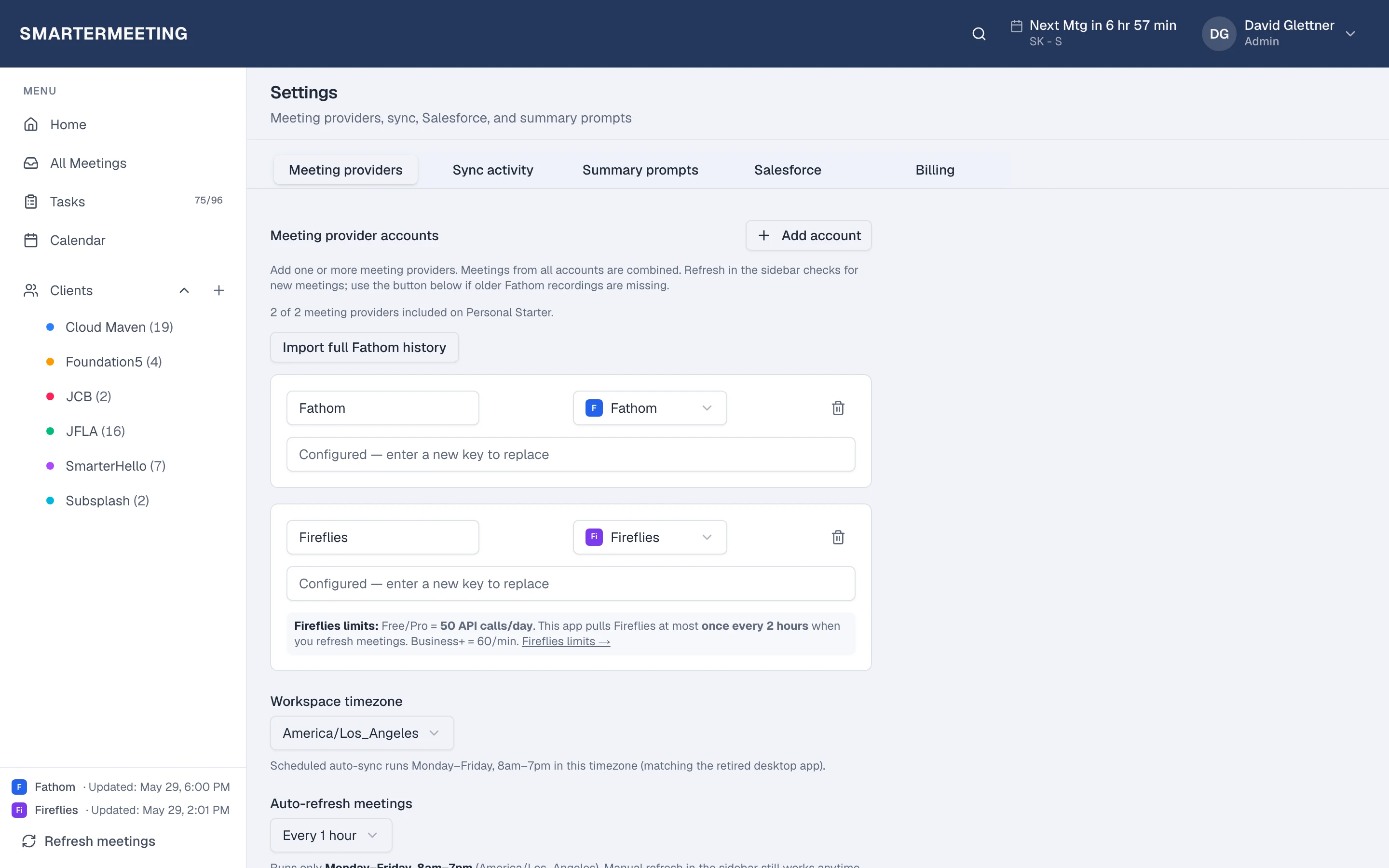
Step 1: Connect Fathom
In SmarterMeetings Settings, add your Fathom integration with your API key. Sync runs on a schedule or on demand—your Fathom recordings appear in the unified meeting inbox alongside Zoom, Fireflies, and other providers.
For a full comparison of Fathom alone vs adding SmarterMeetings, see Fathom vs SmarterMeetings.
Step 2: Organize by client
Tag meetings to the right client or project before you push to CRM. Filters by provider and review status help consultants and sales teams see what's still unreviewed before the next call.
Use a consistent tagging approach from A simple tagging system for meeting notes.
Step 3: Push to Salesforce
Configure the Salesforce integration to log completed calls, link Accounts and Opportunities, and create tasks from meeting summaries. AI-suggested field updates can pre-fill CRM fields from transcript context—your reps approve instead of re-keying.
Why not Fathom alone?
Fathom excels at capture. SmarterMeetings adds the layer above:
- Multi-provider inbox (Fathom + Zoom + Teams + more)
- Client organization and review workflow
- Task tracking across meetings
- Native Salesforce sync
If you also run Zoom or Google Meet for clients, everything lands in the same workspace. Read Fathom and Zoom in one workspace.
Next steps
- Connect Fathom in /integrations
- Review your last three client calls and extract tasks
- Log one call to Salesforce as a pilot
- Compare pricing for Salesforce-enabled plans
Ready to try it? Start your 7-day free trial and connect Fathom in minutes.